
In this guide
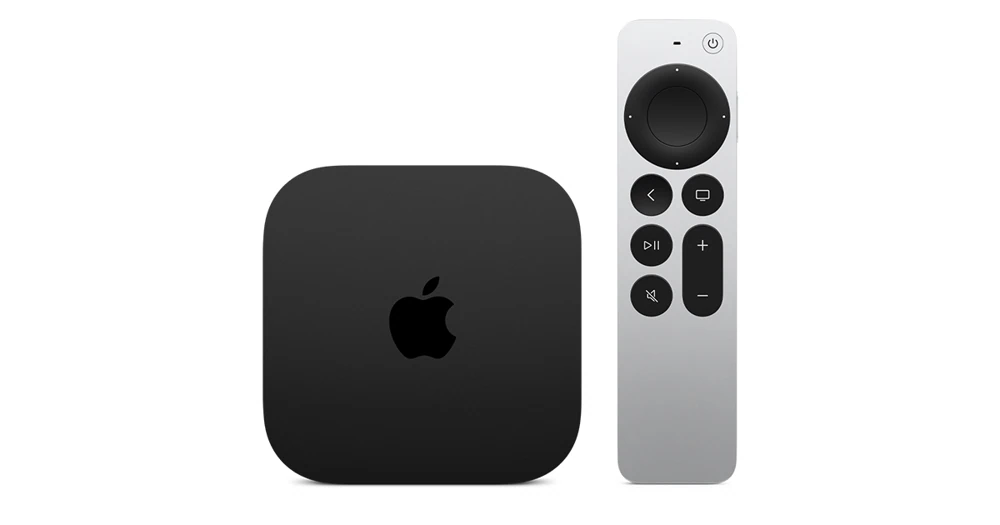
Choose the navigation behaviorCompare on a familiar screenDecide what the TV button should doCheck accessibility and app behavior separatelyApple TV offers remote preferences for touch tracking and, on the supported silver remote, Click and Touch or Click Only. If swipes move farther than you expect, review these settings before replacing the player or changing the service account.
The remote controls the interface, while the app determines which actions it exposes. Adjusting sensitivity cannot supply a missing app control.
Choose the navigation behavior
Open Settings > Remotes and Devices. Apple lists Touch Surface Tracking choices of Fast, Medium and Slow. Faster tracking makes smaller thumb movements travel farther on the screen.
For a silver remote with a clickpad, Click Only turns off touch-surface tracking; Click and Touch permits both. This option is not a universal setting for every Apple TV remote, so confirm the remote type.
Compare on a familiar screen
- Note the current tracking and clickpad settings.
- Change one preference, such as tracking speed.
- Navigate a familiar Home-screen row using the same gesture.
- Open the player and try moving between nearby controls.
- Keep the setting that suits the user, or restore the recorded previous choice.
Decide what the TV button should do
The same settings area lets the TV button open the Apple TV app or go to the Home Screen. Choose the destination the household expects. The Apple TV app and the Apple TV Home screen are different places.
If pressing TV appears to leave a third-party player and open another app, check this preference before assuming the player has crashed. A configured button destination can explain the behavior without reinstalling anything.
Check accessibility and app behavior separately
Someone who prefers discrete clicks may find a different setup more predictable than someone who uses swipes comfortably. Let the actual user try the controls at a normal viewing distance. Avoid choosing a speed only because it feels fast during setup.
If focus jumps unpredictably in one app but behaves consistently on Home, record the app and affected control. If the issue affects all screens, include the remote model and tvOS version in an Apple support request.
Keep an alternative input route available while adjusting controls, especially if another person relies on the existing setup. A phone remote or accessibility feature has its own requirements. Remote settings do not change Dream 4K account entitlement, app purchase terms or the source’s available audio and subtitle tracks.